Use Search to identify the recording, inspect the available actions, and save only content you are permitted to download. Check completed files in the destination folder. A playlist entry or a queued task alone is not proof of an offline download.
Find the correct YMusic song
Search with the artist and title together. A result can be a single video, an album-style list, a mix, a cover or a live performance. Check the artist/uploader, title and duration before opening it; several recordings can share the same song name.
Preview the item while you have a working connection. If it is unavailable, try another item and compare the same recording with the original service. That separates a restricted or removed source item from a wider YMusic problem.
The Search label appears in the inspected APK. The developer’s archived screenshot below also shows why a song search can return playlists and mixes alongside individual videos.
What an artist search can contain
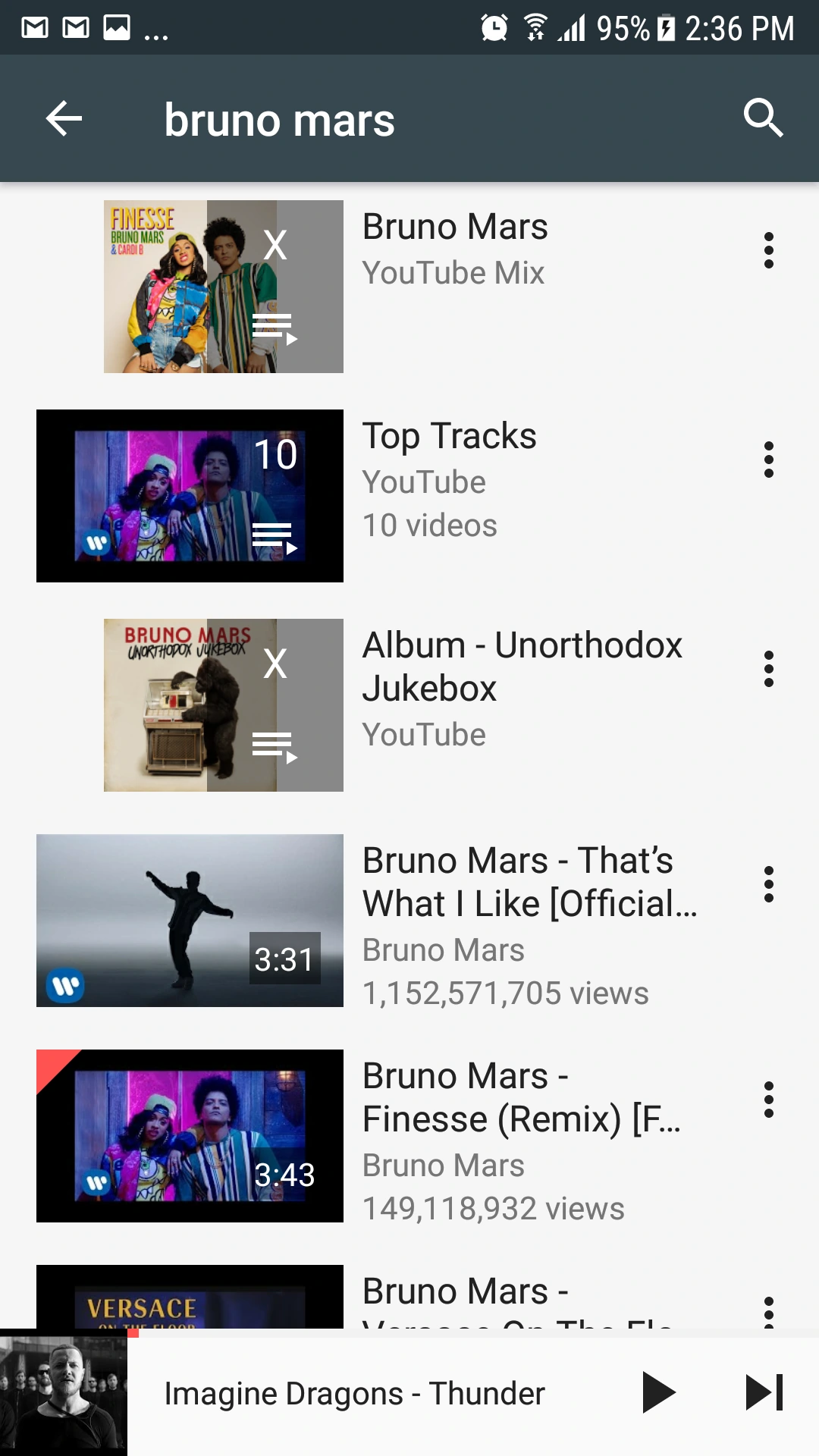
The screen includes a mix, a playlist result and individual videos. A mini player is visible at the bottom. The exact app version is unknown; this is a historical example, not the current release.
View the developer’s referenceCreate a listening list without confusing it with downloads
The inspected resources include Create playlist, Add to playlist and Playlists labels. Where your installed interface offers these controls, give the list a name that describes its purpose: a commute, a study session or a group of tracks to review.
After adding an item, open the list and verify that the intended recording appears. A similarly named cover or live version can easily enter a list by mistake. Adding an online reference does not prove that its audio has been saved locally.
Also distinguish a playlist from a playback queue. The queue describes what will play next; a saved playlist is a list you expect to revisit. Do not rely on either as the only copy of an important file.
Check a YMusic playlist download
Whole-playlist downloading was not verified for the checked build. If your interface offers a playlist-level action, read what it will process and inspect its result. If it offers only a Download action beside an individual item, do not assume that it has selected the entire list.
- Identify which permitted items you actually want to save, and note the expected count.
- Check storage and the destination folder before starting a large operation.
- Inspect any task list the app exposes, distinguishing pending, failed and completed items.
- Compare completed files with the items you intended to save. Open several files rather than trusting one overall message.
- Handle unavailable items individually. A failure for one item does not establish that every other item failed.
A list’s size can change when its source owner adds, removes or restricts items. A completed file is a separate result; it is not evidence that future additions will be downloaded automatically.
MP3, M4A and audio-quality choices
MP3 and M4A labels occur in the inspected APK resources. This establishes their presence in the app’s vocabulary, not successful conversion of every source. Choose only a format the actual item offers and check the saved file afterward.
A larger selected bitrate does not recover detail missing from a source recording. Converting a lower-quality stream into a bigger file can increase storage use without improving the sound. Compare the recording and the actual output instead of assuming a large number is automatically better.
For planning, a four-minute file at an assumed 128 kb/s is about 3.84 decimal MB of audio. Twenty such files are about 76.8 MB, before artwork, cache or temporary files. Use the homepage storage calculator to change those assumptions. These are mathematical examples, not measured YMusic file sizes.
Check that a file really works offline
Find the completed file in the chosen folder and open it in an appropriate local audio player. Verify that it has a plausible size and duration and is the recording you intended to save.
For a useful offline check, temporarily disconnect from the network and try the local file, then restore your connection. Opening a cached online screen is a different test from opening the saved file. Keep any important media backed up separately from app settings.
If a task fails before a file appears, check the connection, free storage and permitted destination. If it fails during conversion, record the exact format and error. Follow the file and conversion troubleshooting sequence.
Now playing, sleep timer and equalizer controls
Now playing, Sleep timer and Equalizer labels were found in the APK resources. Inspect the controls offered by your installed build rather than following a screenshot from a different version.
If a sleep timer is enabled, an intentional stop can resemble a background-playback failure. Check its state when diagnosing audio that stops after a consistent interval. Review the current volume/output and compare with another item before changing equalizer settings.
When playback stops specifically after locking the phone, follow the background playback guide. The appearance of a settings label is not a claim that these controls were tested on your device.
Use media you have permission to save
Check the recording’s permissions and the service’s terms before saving or sharing it. An app’s download capability is not a licence to copy every track. Your own recordings and files you are authorized to use still need to be handled under the relevant terms.
This guide does not ask for your Google credentials, supply music files or promise access to restricted content. For app data and storage permissions, review the permissions and publisher policy.
Sources & review
- YMusic publisher website
- YMusic privacy policy and terms
- Khang NT: archived YMusic UI reference (2018)
- YouTube terms of service
Sources checked 13 October 2026. Initial content was AI-assisted. Named human review is pending. No on-device YMusic testing is claimed.
Read our editorial and verification policy